RocketLife's greeting card templates help you create a personal message fast. Here's a 90-second video to show just how quick it is. (Click the Full Screen button to watch in HD.)
Of course, like everything RocketLife, your creation is still completely customizable. Our templates aren't limited to a specific number of photos. Pick your favorites; the program lays them out artfully, and then adjusts as you resize or add more.
What features would you like us to cover next? Please leave a comment below.
Happy holidays from RocketLife!
Showing posts with label holiday projects. Show all posts
Showing posts with label holiday projects. Show all posts
Thursday, December 15, 2011


Tuesday, October 26, 2010
How To Mix & Match Graphics in RocketLife
Each theme in RocketLife includes a related set of Placeable Graphics. The Halloween theme, for example, offers nine: a bat, a ghost, two moons, two spiderwebs, a black cat, some pumpkins, and a spider. However, we don't restrict you to one set; you can easily grab and use any graphic in the program. (There are currently more than 800.)
In case you missed our last tutorial, Placeable Graphics are like stickers without the goo: You can drop these images on your layout and smoothly rotate, resize, and even tint or crop them.
This calendar page features two placeable graphics — a moon and a spider. (The bats are part of the Halloween theme itself.)
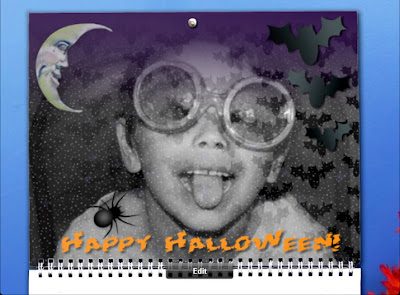
This calendar page mixes Placeable Graphics from two themes. Also notice how RocketLife automatically blended the main photo into the theme for an extra spooky effect. (Click to enlarge.)
The spider image came from the Halloween theme:
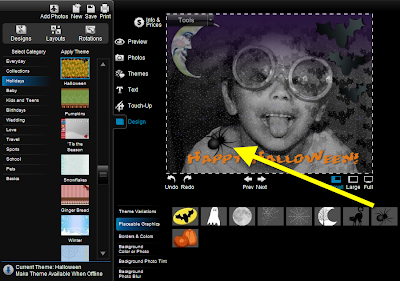
To add the spider graphic to our layout, we clicked the Design tab, then the Placeable Graphics tab, and then the spider image. (Click to enlarge.)
The moon image came, surprisingly, from the Garden Surprise theme:
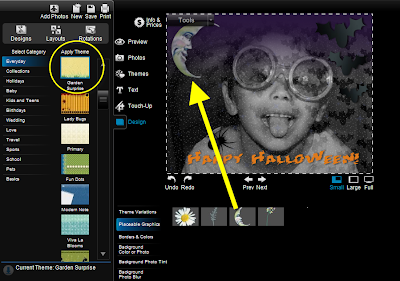
Selecting a new theme from the lefthand column in Design mode brings up its set of Placeable Graphics. We found the perfect moon in the Garden Surprise theme. (Click to enlarge.)
Tip To add even more spooky atmosphere, we then selected the moon on the layout and made it slightly transparent, simulating fog. You'll find transparency controls in the Touch-Up tab.
Placeable graphics are especially good for scrapbooking, as RocketLife expert Kim Guymon demonstrates in this video, Digital Scrapbooking with RocketLife. And you can even add your own.
In case you missed our last tutorial, Placeable Graphics are like stickers without the goo: You can drop these images on your layout and smoothly rotate, resize, and even tint or crop them.
This calendar page features two placeable graphics — a moon and a spider. (The bats are part of the Halloween theme itself.)

This calendar page mixes Placeable Graphics from two themes. Also notice how RocketLife automatically blended the main photo into the theme for an extra spooky effect. (Click to enlarge.)
The spider image came from the Halloween theme:

To add the spider graphic to our layout, we clicked the Design tab, then the Placeable Graphics tab, and then the spider image. (Click to enlarge.)
The moon image came, surprisingly, from the Garden Surprise theme:

Selecting a new theme from the lefthand column in Design mode brings up its set of Placeable Graphics. We found the perfect moon in the Garden Surprise theme. (Click to enlarge.)
Tip To add even more spooky atmosphere, we then selected the moon on the layout and made it slightly transparent, simulating fog. You'll find transparency controls in the Touch-Up tab.
Placeable graphics are especially good for scrapbooking, as RocketLife expert Kim Guymon demonstrates in this video, Digital Scrapbooking with RocketLife. And you can even add your own.
Friday, June 18, 2010
Cool Tip: The Daddy of All Photo Frames
Kate in RocketLife Support shared this clever collage she made for Father's Day. (Click the image to zoom in.) Notice there are just six components:

Notice how the "dad" graphic neatly frames the baby pictures. (Click to enlarge.)
There are two ways to convert a photo to a background image in RocketLife. To start, select the photo and then click the Tools menu. (That's the button at the top left corner of the photo.) Next, choose either Copy to Background or Make Photo Full Page. The Copy command blends the photo into the texture of the theme. The Full Page command enlarges the photo to fill the page. In this case, we want to use Full Page:
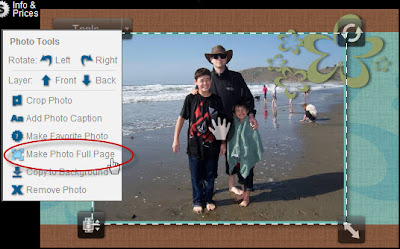
Instantly enlarge a photo to fill the page by clicking the Make Photo Full Page command in the Tools menu. (Click to enlarge.)
Tip Notice how Kate's background photo is faded slightly to emphasize the text and foreground images. To get a similar effect, choose the Plain White theme (in the Basics category), select the Touch-Up tab, and then set Transparency to about 30. That will let part of the white background show through, fading the image.
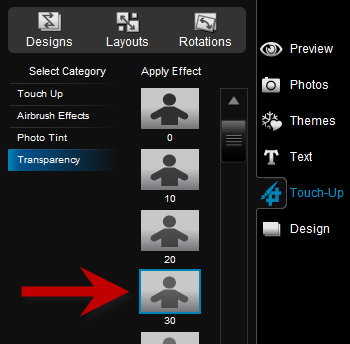
The Transparency effect makes images fade into the background, helping to emphasize other elements on the page.
As you can see, the Touch-Up tools aren't just for fixing problem photos. You can also use them creatively. We'll explore that idea further in future tutorials. To read more tips for using placeable graphics, see Adding Your Own Graphics and Logos in RocketLife.
What clever techniques have you discovered, Daddy-O? Please leave a comment!
- The background photo
- The text, "Happy First Father's Day 2010"
- Three small baby photos
- The large "dad" placeable graphic from the Father's Day theme

Notice how the "dad" graphic neatly frames the baby pictures. (Click to enlarge.)
There are two ways to convert a photo to a background image in RocketLife. To start, select the photo and then click the Tools menu. (That's the button at the top left corner of the photo.) Next, choose either Copy to Background or Make Photo Full Page. The Copy command blends the photo into the texture of the theme. The Full Page command enlarges the photo to fill the page. In this case, we want to use Full Page:

Instantly enlarge a photo to fill the page by clicking the Make Photo Full Page command in the Tools menu. (Click to enlarge.)
Tip Notice how Kate's background photo is faded slightly to emphasize the text and foreground images. To get a similar effect, choose the Plain White theme (in the Basics category), select the Touch-Up tab, and then set Transparency to about 30. That will let part of the white background show through, fading the image.
The Transparency effect makes images fade into the background, helping to emphasize other elements on the page.
As you can see, the Touch-Up tools aren't just for fixing problem photos. You can also use them creatively. We'll explore that idea further in future tutorials. To read more tips for using placeable graphics, see Adding Your Own Graphics and Logos in RocketLife.
What clever techniques have you discovered, Daddy-O? Please leave a comment!
Subscribe to:
Comments (Atom)