Your calendar occupies a prime position on your wall, so why not make it truly personal? This video shows how to create a great-looking calendar from your photos in less than two minutes, using RocketLife-powered software. You’ll learn how to add photos, choose a theme and starting month, and customize the calendar grid itself to complement your photos. (Click the Full Screen button to watch in HD.)
These tips apply to all of our calendar projects, including ship-to-home, print-at-home, and pick-up-at-store versions.
What’s on your calendar? Let us know in the comments below.
Showing posts with label themes. Show all posts
Showing posts with label themes. Show all posts
Friday, February 17, 2012


Tuesday, October 26, 2010
How To Mix & Match Graphics in RocketLife
Each theme in RocketLife includes a related set of Placeable Graphics. The Halloween theme, for example, offers nine: a bat, a ghost, two moons, two spiderwebs, a black cat, some pumpkins, and a spider. However, we don't restrict you to one set; you can easily grab and use any graphic in the program. (There are currently more than 800.)
In case you missed our last tutorial, Placeable Graphics are like stickers without the goo: You can drop these images on your layout and smoothly rotate, resize, and even tint or crop them.
This calendar page features two placeable graphics — a moon and a spider. (The bats are part of the Halloween theme itself.)
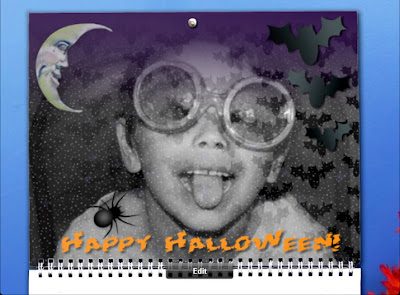
This calendar page mixes Placeable Graphics from two themes. Also notice how RocketLife automatically blended the main photo into the theme for an extra spooky effect. (Click to enlarge.)
The spider image came from the Halloween theme:
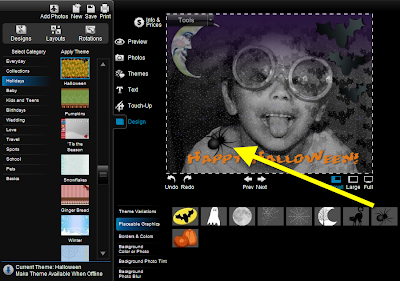
To add the spider graphic to our layout, we clicked the Design tab, then the Placeable Graphics tab, and then the spider image. (Click to enlarge.)
The moon image came, surprisingly, from the Garden Surprise theme:
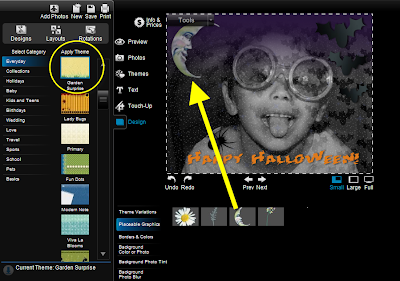
Selecting a new theme from the lefthand column in Design mode brings up its set of Placeable Graphics. We found the perfect moon in the Garden Surprise theme. (Click to enlarge.)
Tip To add even more spooky atmosphere, we then selected the moon on the layout and made it slightly transparent, simulating fog. You'll find transparency controls in the Touch-Up tab.
Placeable graphics are especially good for scrapbooking, as RocketLife expert Kim Guymon demonstrates in this video, Digital Scrapbooking with RocketLife. And you can even add your own.
In case you missed our last tutorial, Placeable Graphics are like stickers without the goo: You can drop these images on your layout and smoothly rotate, resize, and even tint or crop them.
This calendar page features two placeable graphics — a moon and a spider. (The bats are part of the Halloween theme itself.)

This calendar page mixes Placeable Graphics from two themes. Also notice how RocketLife automatically blended the main photo into the theme for an extra spooky effect. (Click to enlarge.)
The spider image came from the Halloween theme:

To add the spider graphic to our layout, we clicked the Design tab, then the Placeable Graphics tab, and then the spider image. (Click to enlarge.)
The moon image came, surprisingly, from the Garden Surprise theme:

Selecting a new theme from the lefthand column in Design mode brings up its set of Placeable Graphics. We found the perfect moon in the Garden Surprise theme. (Click to enlarge.)
Tip To add even more spooky atmosphere, we then selected the moon on the layout and made it slightly transparent, simulating fog. You'll find transparency controls in the Touch-Up tab.
Placeable graphics are especially good for scrapbooking, as RocketLife expert Kim Guymon demonstrates in this video, Digital Scrapbooking with RocketLife. And you can even add your own.
Thursday, July 1, 2010
Cool Tip: Dare To Theme
The RocketLife software offers more than 1,600 graphic themes to enhance your photo layouts. That may sound like too much of a good thing, but we've organized the themes into three nested categories, so trying new looks is easy.
At the top level are categories such as Sports and Pets. These contain subcategories such as Tennis and Cats. And finally, each subcategory contains a set of variations, complete with designer-selected colors and placeable graphics.
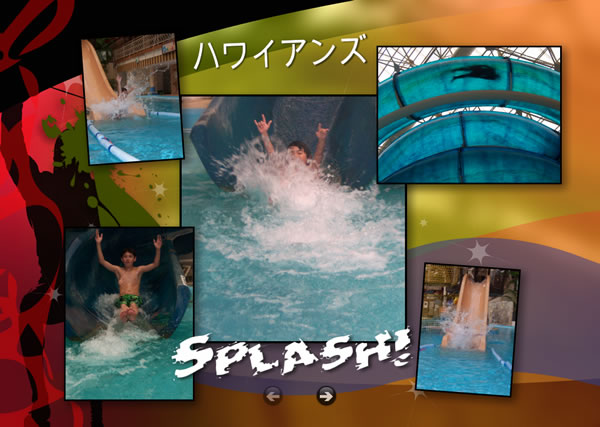
Can you guess which theme we used here? It's not the obvious choice. (Click to enlarge.)
To get started exploring themes, click the Themes tab, select a category, and then click a thumbnail image in the Apply Theme column:
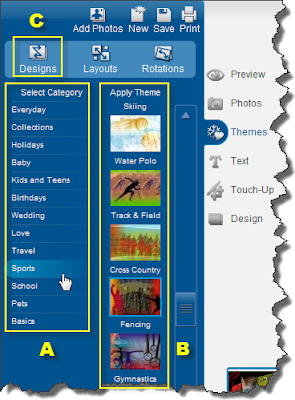
The Themes tab shows the top-level categories (A). Click a thumbnail image (B) to apply one of the themes to your layout. Click the Designs button (C) to step through variations. (Click to enlarge.)
Tip: Clicking the Design tab lets you see all theme variations at once:
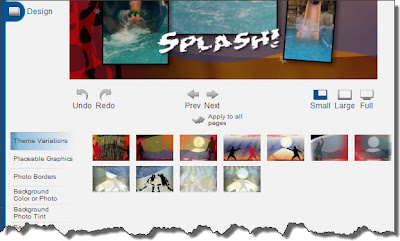
Each theme offers numerous variations, shown in the thumbnail images at the bottom of the page. The variations with the head-and-shoulders silhouette automatically blend the biggest photo into the background. (Click to enlarge.)
Here's the cool tip: Don't feel restricted by the theme category names. You can get some really interesting results by thinking outside the box. For the Japanese water park photos above, we initially tried themes such as Swimming and Water Polo, but ended up liking the contrasting colors in the Fencing theme more.
There was just one snag: The left edge of this particular theme variation had a silhouette of a swordsman. So we covered it with a placeable graphic and used the photo tint feature in the Touch-Up tab to match one of the background colors:
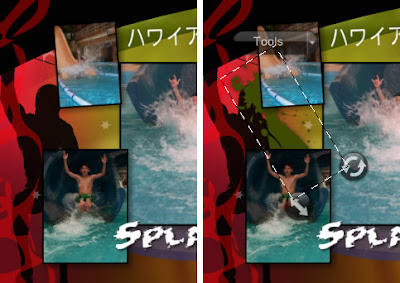
Partially covering the sword-fighter silhouette with a placeable graphic transformed it into a background texture.
Here's the final layout again:
With some creative masking, the Fencing theme worked well for this water park layout. (Click to enlarge.)
For more creative ideas for placeable graphics, see these Cool Tips:
At the top level are categories such as Sports and Pets. These contain subcategories such as Tennis and Cats. And finally, each subcategory contains a set of variations, complete with designer-selected colors and placeable graphics.

Can you guess which theme we used here? It's not the obvious choice. (Click to enlarge.)
To get started exploring themes, click the Themes tab, select a category, and then click a thumbnail image in the Apply Theme column:

The Themes tab shows the top-level categories (A). Click a thumbnail image (B) to apply one of the themes to your layout. Click the Designs button (C) to step through variations. (Click to enlarge.)
Tip: Clicking the Design tab lets you see all theme variations at once:

Each theme offers numerous variations, shown in the thumbnail images at the bottom of the page. The variations with the head-and-shoulders silhouette automatically blend the biggest photo into the background. (Click to enlarge.)
Here's the cool tip: Don't feel restricted by the theme category names. You can get some really interesting results by thinking outside the box. For the Japanese water park photos above, we initially tried themes such as Swimming and Water Polo, but ended up liking the contrasting colors in the Fencing theme more.
There was just one snag: The left edge of this particular theme variation had a silhouette of a swordsman. So we covered it with a placeable graphic and used the photo tint feature in the Touch-Up tab to match one of the background colors:

Partially covering the sword-fighter silhouette with a placeable graphic transformed it into a background texture.
Here's the final layout again:
With some creative masking, the Fencing theme worked well for this water park layout. (Click to enlarge.)
For more creative ideas for placeable graphics, see these Cool Tips:
Subscribe to:
Comments (Atom)